How to Load Sync Vx in Pro Tools
Learn how to load Sync Vx in Pro Tools in order to align multiple vocal tracks.
Sync Vx is available in the Pro Tools plugin list, in the Plugin > Other menu. Load an instance of Sync Vx on each mono track you want to sync or sync to.
Sync Vx is also available in the AudioSuite plugin list. Select the tracks and area you wish to sync and click ‘Capture’ to import the audio to the instance.
Sync Vx can also be loaded as an ARA plugin. ARA stands for Audio Random Access, a protocol developed to improve the integration between audio plugins and DAWs (Digital Audio Workstations). It allows plugins and DAWs to exchange information about audio content and session structure seamlessly.
Please Note: Sync Vx ARA instances cannot communicate with Sync Vx AAX insert or AudioSuite instances.
Make sure to use the same plugin format for the tracks you wish to align.
Follow the steps below to load Sync Vx as an ARA plugin in Pro Tools.
Enabling Sync Vx for all clips on the track
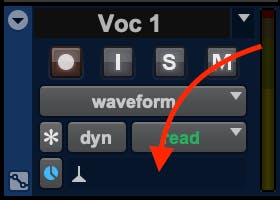
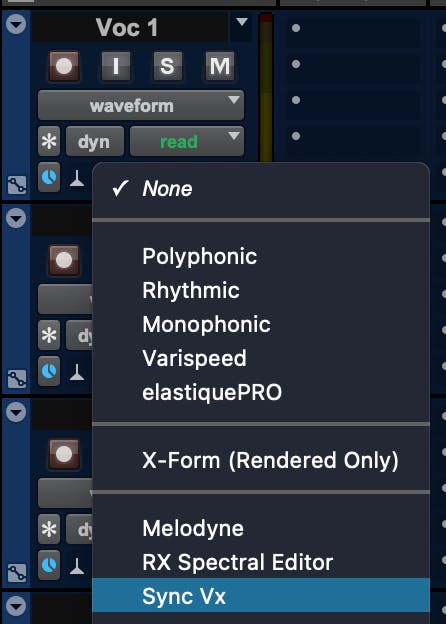
To enable Sync Vx for all audio clips on a track at the same time, load Sync Vx from the Elastic Audio Plug-In Selector menu in the track header:
Load Sync Vx on multiple tracks
Sync Vx aligns audio from multiple tracks, so you’ll need to load it on each track you wish to sync.
You can load Sync Vx on multiple tracks at the same time by selecting all the tracks you wish to sync, hold Alt+Shift (Win) / Option+Shift (Mac), then select Sync Vx from the Elastic Audio Plug-In Selector menu, as shown above.
Enabling Sync Vx for specific clips
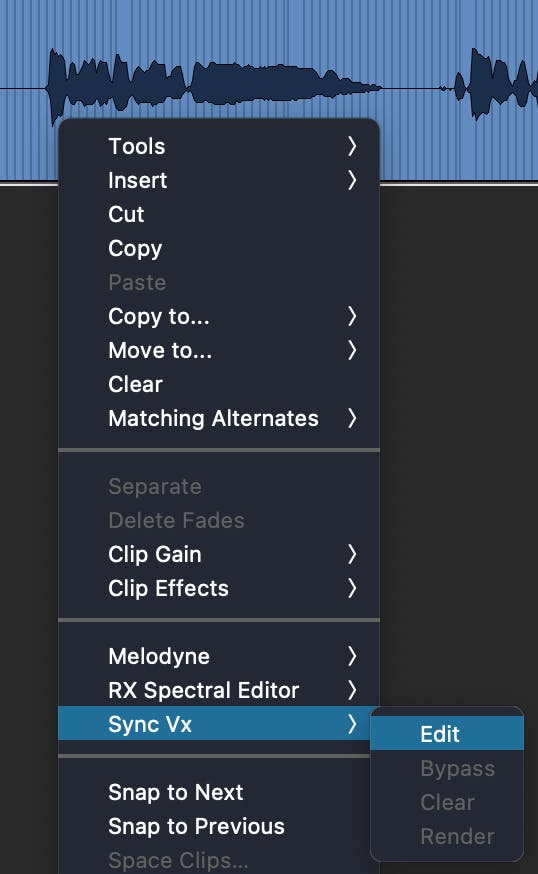
In case you only want specific clips to be processed by Sync Vx, right-click on the clip, then select Sync Vx > Edit.
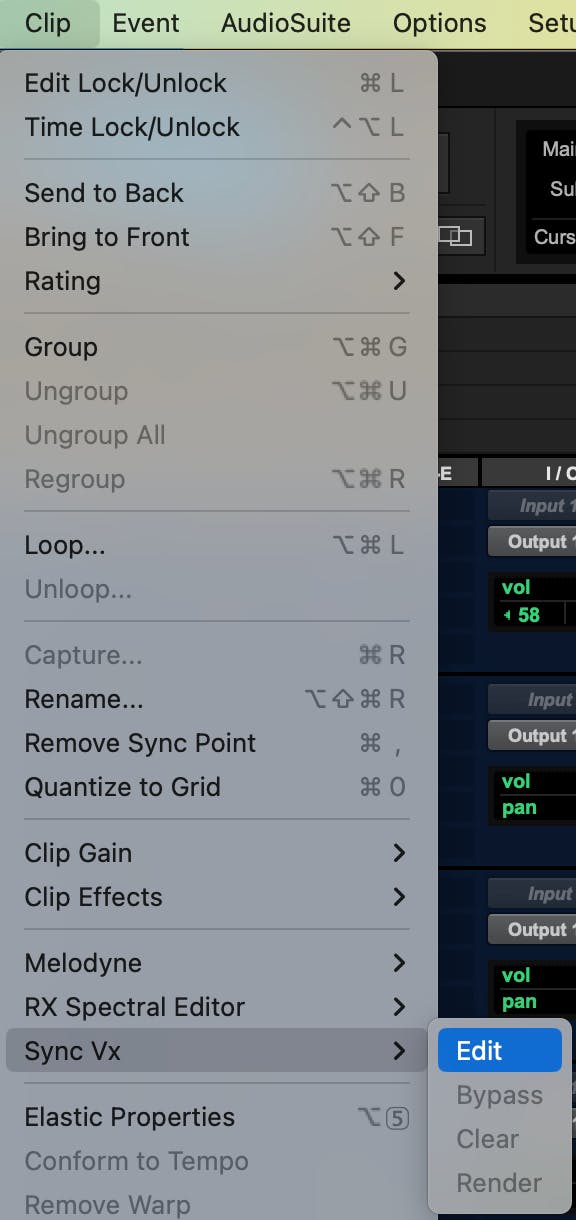
You can also load it on a clip by loading Sync Vx from the Clip menu > Sync Vx > Edit:
Open the Sync Vx interface
Once Sync Vx is loaded on tracks and clips, you can access its interface from the bar at the bottom of the Edit window:

Refer to the Sync Vx User Guide to learn more about how to use Sync Vx.
Learn How to load Sync Vx in other DAWs.
Need further assistance? Contact Technical Support.